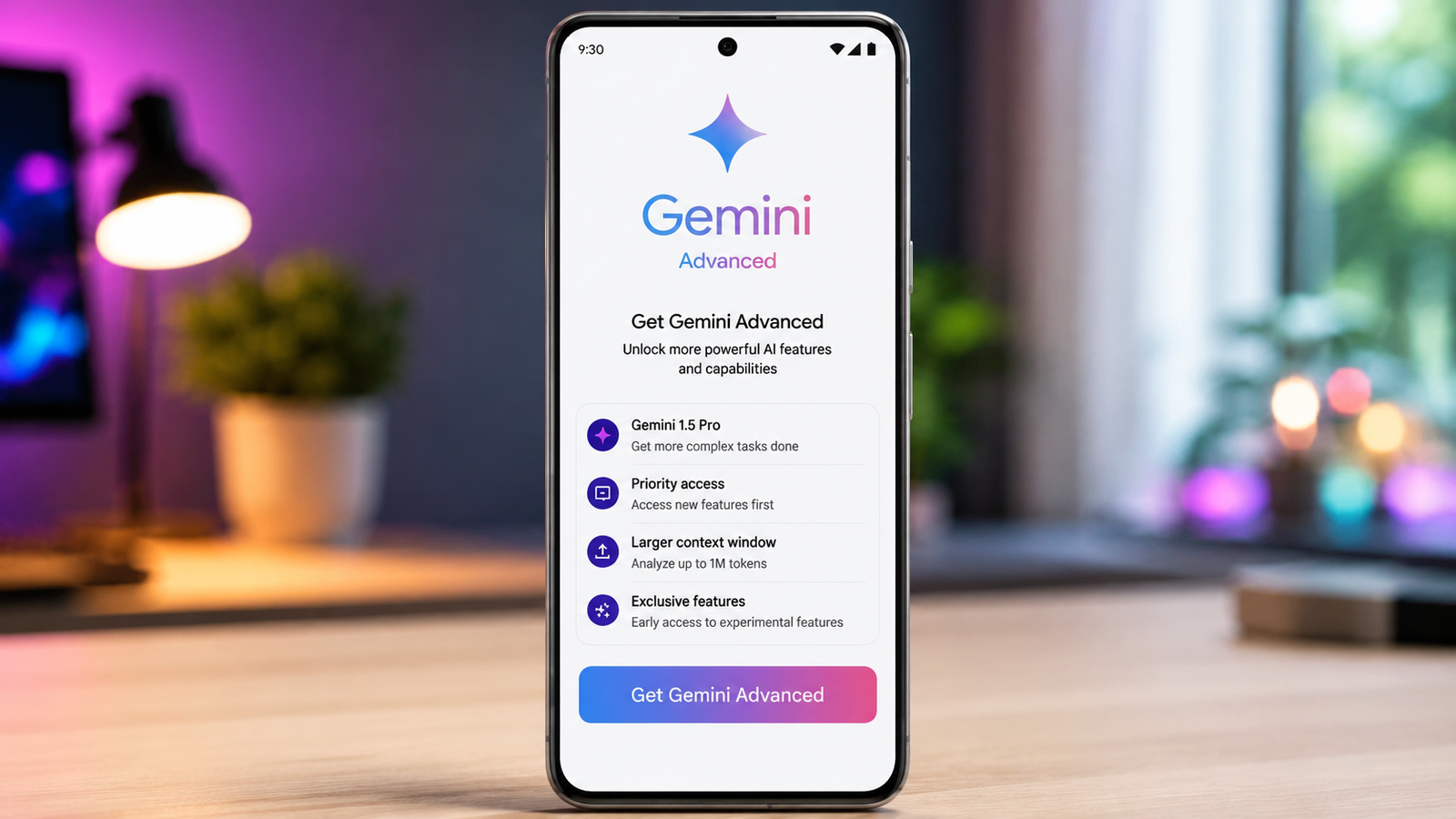
Artificial intelligence has become an essential productivity tool for writing, research, coding, brainstorming, and everyday tasks. While Google’s free Gemini version is suitable for general use, users who need access to more advanced AI capabilities can subscribe to Gemini Advanced through the Google One AI Premium plan.
This guide explains what Gemini Advanced offers, how to subscribe, what benefits are included, and how to manage your membership after activation.
What Is Gemini Advanced?
Gemini Advanced is Google’s premium AI experience that provides access to more capable Gemini models for complex tasks. It is designed for users who regularly work with detailed documents, programming, content creation, research, and other productivity-focused activities.
The subscription is available through the Google One AI Premium plan, which also includes additional Google services and cloud storage benefits.
Key Features of Gemini Advanced
Subscribers receive access to several premium features, including:
- Advanced Gemini AI models
- More powerful assistance for writing, coding, and research
- 2 TB of Google Drive storage
- Google One Premium membership benefits
- Additional Google Meet features (where available)
- Eligible Google Play member benefits in supported regions
The exact features may vary depending on your country and Google’s latest service offerings.
Steps to Subscribe to Gemini Advanced
Getting started is simple if your region supports the service.
1. Sign In to Your Google Account
Use the Google account you want to use with Gemini and Google One services.
2. Visit the Gemini Subscription Page
Open the official Gemini website and navigate to the subscription section where Google offers its AI Premium plans.
3. Select the Google One AI Premium Plan
Review the available plan details, pricing, and included features before continuing.
4. Start the Subscription
Select the available button such as Start Trial, Upgrade, or Subscribe, depending on the offer displayed for your account.
5. Complete Payment
If required, add or confirm your preferred payment method and finish the subscription process.
Google occasionally provides promotional free trials for eligible accounts. Availability depends on current offers and regional eligibility.
What Happens After You Subscribe?
Once your membership becomes active, premium Gemini features become available within your account.
You may notice changes such as:
- Access to advanced AI models
- Additional workspace features
- More cloud storage through Google Drive
- Google One membership benefits
Some interface settings, such as theme preferences, can still be customized from the settings menu.
How to Switch Between Gemini Models
Depending on your subscription and device, you can choose different AI models while using Gemini.
On a Computer
- Open Gemini.
- Select the model selector.
- Choose Gemini Advanced when available.
- Switch back to the standard model whenever needed.
On Android or iPhone
- Open the Gemini app.
- Tap your profile picture.
- Open Settings.
- Select the available AI model or response preferences supported by your account.
Available models may change as Google introduces new updates.
Tips for Better AI Responses
The quality of Gemini’s answers depends largely on how you write your prompts.
For improved results:
- Be clear about your request.
- Include relevant background information.
- Specify the writing style or tone.
- Mention your desired output format.
- Divide large projects into smaller requests.
Detailed prompts generally produce more accurate and useful responses.
Using Gemini to Generate Images
Gemini also supports AI image creation in supported versions.
To generate an image:
- Describe the scene clearly.
- Mention the desired style, colors, or composition.
- Include important objects or backgrounds.
- Refine your prompt if the first result isn’t exactly what you expected.
Image generation features may differ depending on your account type, region, and current Gemini version.
Manage Your Activity and Privacy
Google allows users to control how Gemini activity is stored.
You can:
- Review previous conversations
- Delete individual chats
- Adjust activity retention settings
- Disable activity history where supported
Checking these settings periodically helps you manage your privacy preferences.
How to Change or Cancel Your Membership
If you decide that Gemini Advanced no longer meets your needs, you can manage your subscription through Google One.
On Desktop
- Open your Google One account.
- Select Manage Membership.
- Choose another plan or cancel your subscription.
On Mobile
- Open the Google One app.
- Go to Membership.
- Select your current plan.
- Change or cancel your subscription.
After cancellation, access to premium Gemini features ends when your current billing period expires. If your cloud storage allowance changes, ensure your stored files remain within the available limit.
Things to Consider Before Subscribing
Before purchasing a subscription, it is worth comparing the available plans and deciding whether the premium features match your workflow.
Gemini Advanced may be a good choice for users who:
- Frequently write long-form content
- Need assistance with programming
- Perform detailed research
- Create business documents
- Work with AI regularly for productivity
Casual users who only need occasional AI assistance may find the free version sufficient.
Final Thoughts
Gemini Advanced combines Google’s premium AI capabilities with the additional benefits of the Google One AI Premium plan. Along with access to advanced AI models, subscribers receive expanded cloud storage and other membership features that can improve productivity across Google’s ecosystem.
Before subscribing, review the latest pricing, supported features, and regional availability to choose the plan that best fits your requirements.