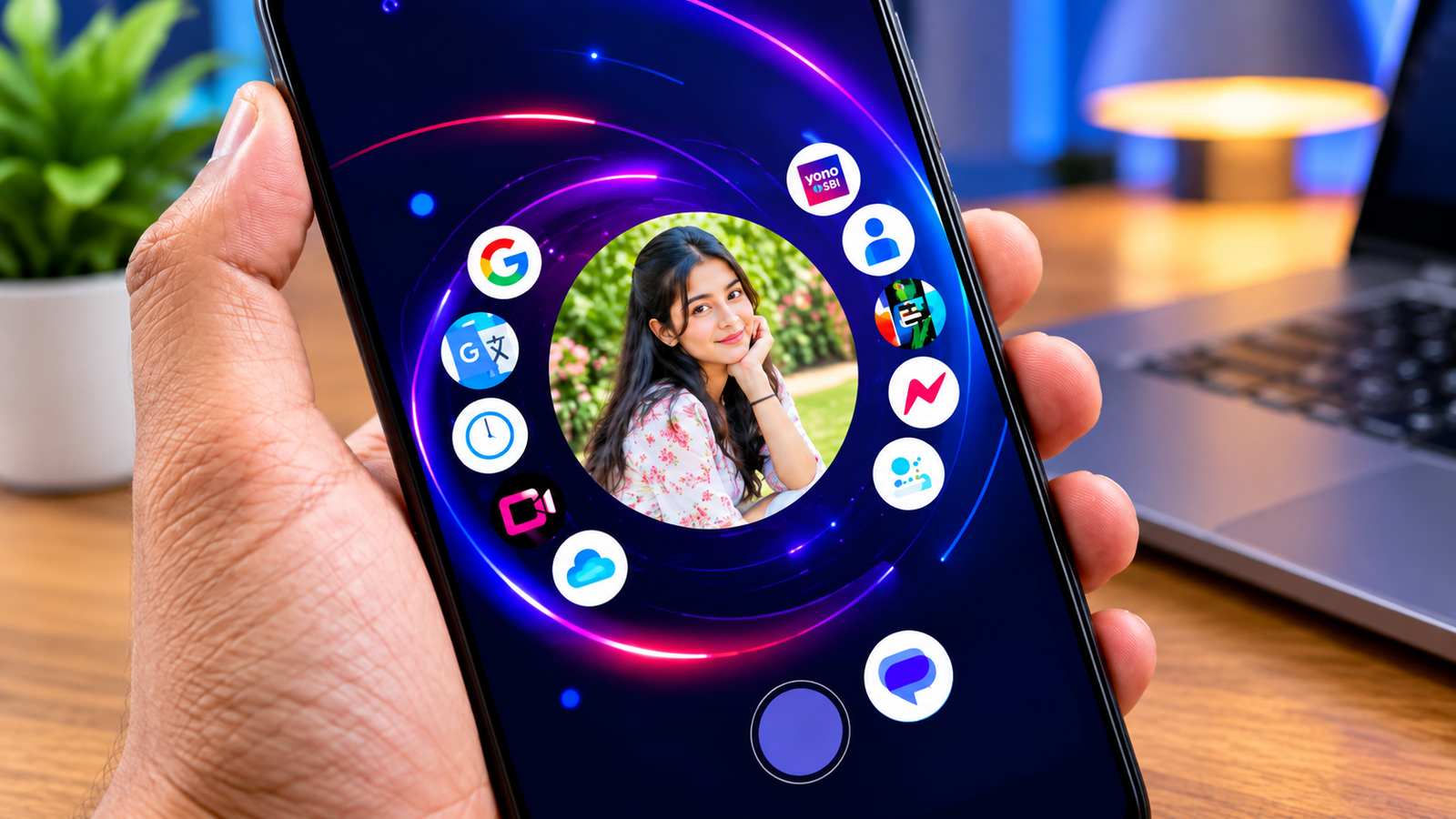
The Android home screen is something most smartphone users see dozens of times a day. After a while, the standard arrangement of icons, folders, and widgets can become repetitive. While changing wallpapers or icon packs can refresh the look, some users may want a more noticeable change.
That is where Nocebo Launcher takes a different approach. Instead of following the familiar grid-based launcher design, it offers a more dynamic interface with unusual visual movement and an alternative way to navigate through apps.
Also read: Designer Tools Pro: A Handy Android App for Checking Mobile UI Designs
A New Take on the Android Launcher
Nocebo Launcher is a third-party Android launcher designed for users who want to move away from the conventional home-screen experience.
Rather than placing apps in fixed rows and columns, the launcher uses a more dynamic presentation. Its distinctive spinning-style interface changes how applications are displayed and accessed, giving the phone a noticeably different appearance.
This makes it more suitable for Android users who enjoy experimenting with their device rather than simply making small cosmetic changes.
What Can You Customize?
The main attraction of a custom launcher is the ability to change the way your home screen looks and works. Nocebo Launcher focuses on this idea by offering an alternative visual experience.
Depending on the options available in the installed version, users can create an interface that suits different styles, including:
- Minimal home-screen designs
- Futuristic-looking layouts
- Unusual app arrangements
- Cleaner interfaces
- More personalized navigation
The exact customization options can depend on the app version and Android device.
Its Spinning Interface Stands Out
One of the most noticeable elements of Nocebo Launcher is its spinning-style layout.
Traditional launchers usually keep app icons in a predictable position. Nocebo takes a more dynamic approach, using movement and changing positioning as part of the interface.
For someone who has always used a conventional Android launcher, this can feel quite different. It may take some time to become familiar with the navigation, but users interested in experimenting with their phone may enjoy the change.
A Different Way to Access Apps
Nocebo Launcher isn’t simply an icon-pack or wallpaper customization tool. It changes how you interact with the home screen.
Instead of relying entirely on the standard app grid, users can explore an alternative navigation system. This can make everyday interaction feel less repetitive, particularly for people who enjoy trying new smartphone interfaces.
However, the unconventional layout may not appeal to users who prefer quick access through familiar folders and fixed icon positions.
Why Consider a Third-Party Launcher?
Android launchers can change several parts of the smartphone experience. Depending on the launcher, users can modify app organization, home-screen layouts, animations, widgets, and other visual elements.
People generally install custom launchers to:
- Give an older phone a fresh appearance
- Organize applications differently
- Try alternative navigation methods
- Reduce unnecessary home-screen clutter
- Experiment with new designs
- Personalize their device beyond standard Android options
Nocebo Launcher is particularly focused on users who want a more noticeable change rather than a simple visual refresh.
Performance Should Be Checked
A unique interface is useful only if it remains comfortable to use every day. Before making Nocebo Launcher your default launcher, test basic tasks such as opening apps, returning to the home screen, moving around the interface, and using its animations.
Performance can differ between devices because of hardware, Android versions, and launcher settings.
If you use an older or entry-level smartphone, it is especially worth checking how smoothly the launcher operates before switching permanently.
Keep an Eye on Battery Usage
Animated interfaces can sometimes use more system resources than simpler home screens. This does not mean every device will experience noticeable battery impact, but it is worth monitoring after installation.
Use your phone normally for a few days and check its battery usage. If you notice higher consumption, reducing unnecessary animations or visual effects may help.
Privacy and Permissions Matter
A launcher has access to parts of the Android interface, so users should pay attention to the permissions requested by any third-party launcher.
Before installing Nocebo Launcher, consider checking:
- Developer information
- Requested permissions
- Privacy information
- Recent user reviews
- Update history
- Source of the download
Only grant permissions that are appropriate for the features you want to use. Downloading apps from trusted sources is also an important security precaution.
How to Get Started
The setup process for a third-party launcher is generally straightforward:
- Download Nocebo Launcher from a trusted source.
- Install and open the application.
- Follow the initial setup instructions.
- Explore its available customization features.
- Adjust the layout and visual settings.
- Test the interface before selecting it as your default launcher.
If you decide that the new interface isn’t suitable for everyday use, you can switch back to your phone’s existing launcher through the relevant Android settings.
Nocebo Launcher or a Traditional Launcher?
The biggest difference comes down to navigation.
Traditional launchers usually prioritize familiarity. Apps are placed in predictable locations, and users can quickly find them through grids, folders, or an app drawer.
Nocebo Launcher takes a more experimental route. Its dynamic and spinning-style interface is intended to make the interaction itself part of the customization experience.
As a result, the choice largely depends on whether you prefer familiar navigation or a more unconventional interface.
Things to Check Before Making the Switch
Before replacing your current launcher, consider a few practical factors:
Compatibility: Check whether your Android version and device are supported.
Performance: Test animations and app navigation before using it as your default launcher.
Customization: Explore the available settings to see whether they match your preferences.
Battery usage: Monitor battery consumption after installation.
Privacy: Review permissions and available privacy information carefully.
Updates: Check whether the application receives regular maintenance.
Official Play Store App Link
Final Thoughts
Nocebo Launcher offers an unconventional approach to Android customization. Its dynamic layout and spinning-style navigation can give your smartphone a noticeably different look and feel compared with a standard launcher.
It may take some time to adjust to the new interaction style, especially if you’re used to a traditional grid-based home screen. For users who enjoy experimenting with Android customization, however, it provides an interesting alternative.
Before making it your everyday launcher, test its compatibility, performance, battery impact, and permissions. This will help you decide whether its unusual interface fits comfortably into your daily smartphone use.