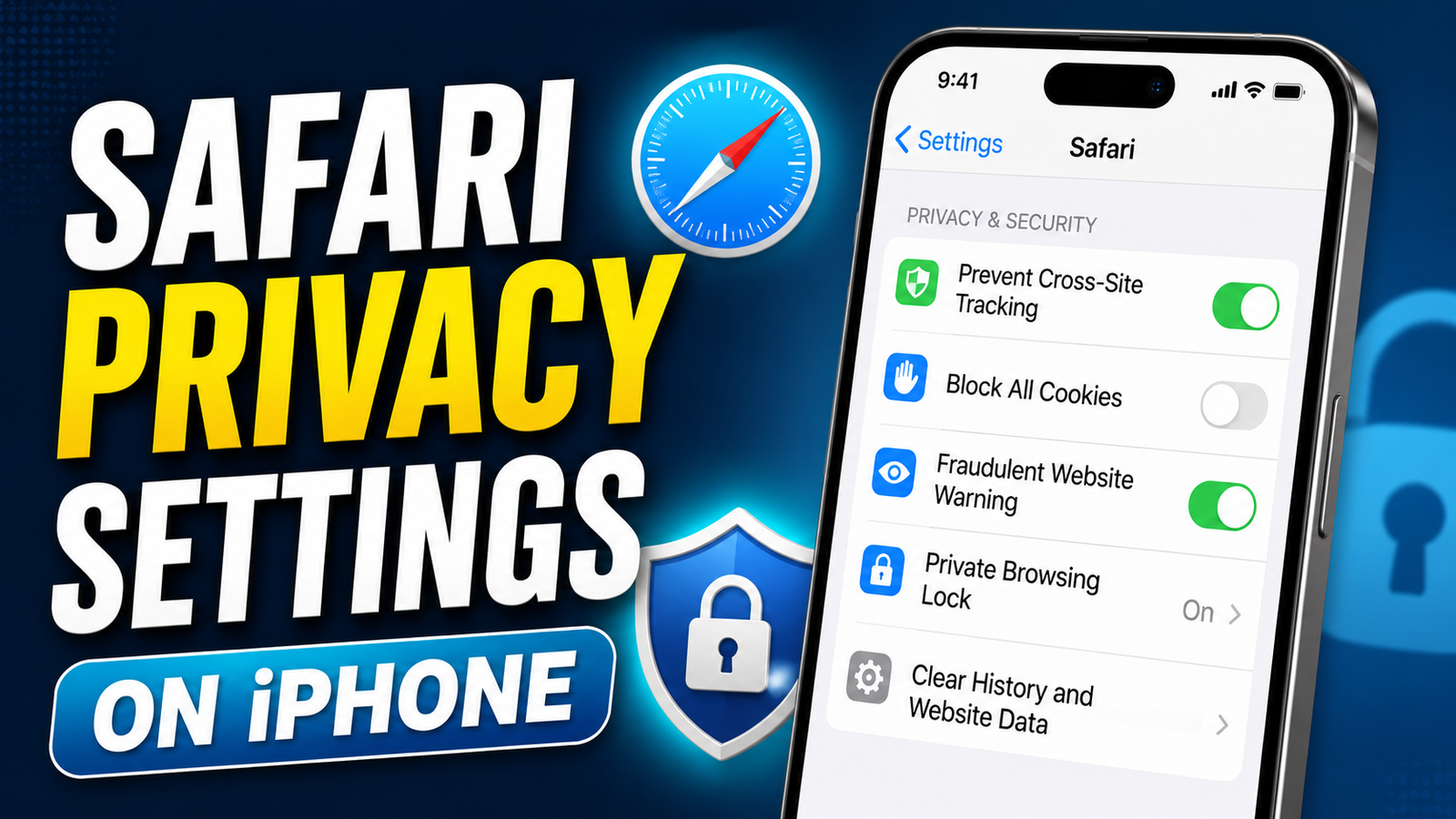
Safari on the iPhone includes a range of privacy and security controls that can help you manage how websites interact with your device and personal information. From blocking cross-site tracking to controlling camera and location access, these options give you more control over your browsing experience.
You don’t need to change every setting to improve privacy. A few carefully chosen adjustments can make Safari more secure while keeping everyday browsing convenient.
Also read: Best Fitness Bands and Trackers in 2026 for Sleep, Fitness and Health Monitoring
Where to Find Safari Settings
Most Safari controls can be accessed from the Settings app.
On recent iOS versions, go to:
Settings → Apps → Safari
On some older iOS releases, Safari may appear directly on the main Settings screen.
Once you’re inside Safari settings, you’ll find options covering search, AutoFill, privacy, website permissions, tabs and other browsing preferences.
Pick the Search Engine You Prefer
Safari doesn’t require you to use a particular search engine. You can change the default search provider from the Safari settings.
Follow these steps:
- Open Settings.
- Go to Apps → Safari.
- Tap Search Engine.
- Select your preferred search provider.
Depending on your iPhone and region, the available choices may include Google, Bing, Yahoo and DuckDuckGo.
The selected search engine will be used for searches made through Safari.
Use a Separate Search Engine for Private Browsing
Safari can also allow a different search engine to be used when you’re browsing privately, where the relevant option is available on your iOS version.
Open:
Settings → Apps → Safari
Look for the option related to using the same search engine in Private Browsing. If available, disable it and then select the search engine you want for private searches.
This lets you keep your normal and private browsing search preferences separate.
Make Online Forms Easier with AutoFill
Safari’s AutoFill feature can save time when completing forms by using information stored on your iPhone.
To manage these options, go to:
Settings → Apps → Safari → AutoFill
You can enable Use Contact Info and select the appropriate contact information under My Info.
Safari can also use saved credit-card information for supported purchases if you choose to enable the relevant option.
Password-related settings are managed separately on newer versions of iOS through Settings → Passwords.
Decide Where Safari Opens New Links
If you frequently open several links, Safari lets you decide whether a new page should immediately replace your current view or open in the background.
Go to:
Settings → Apps → Safari → Open Links
You can choose between options such as:
- In New Tab — Opens the new page for immediate viewing.
- In Background — Keeps your current page visible while opening the link in another tab.
Choose whichever option fits your browsing habits.
Private Browsing on iPhone
Safari’s Private Browsing mode is useful when you don’t want a browsing session to be added to your regular Safari history.
Private tabs are kept separate from your normal tabs, and Safari provides additional protections around private browsing sessions.
To open a private tab:
- Open Safari.
- Tap the Tabs button.
- Switch to Private.
- Tap the option to open a new private tab.
Depending on your settings, authentication such as Face ID, Touch ID or your passcode may be required to access locked private tabs.
Protect Private Tabs With Face ID or Passcode
If your iPhone supports the feature, Safari can require device authentication before previously opened private tabs can be viewed.
Open:
Settings → Apps → Safari
Then look for the setting that requires authentication for Private Browsing and enable the available option.
This can be particularly useful if other people occasionally use your iPhone.
Check Safari’s Privacy Report
Safari provides a Privacy Report that gives you an overview of tracking activity detected while browsing.
To view it:
- Open a website in Safari.
- Tap the Page Menu next to the address bar.
- Select Privacy Report.
The report can show information about trackers that Safari prevented from following your browsing activity across websites.
It’s a useful way to understand how much tracking protection Safari is providing during everyday browsing.
Consider iCloud Private Relay
Users with an iCloud+ subscription can also use Private Relay, where the feature is available.
Private Relay is designed to provide additional privacy for Safari browsing by helping hide your IP address and protecting the DNS requests and traffic associated with your Safari browsing.
Its availability can vary depending on your country or region.
When You May Need to Temporarily Reveal Your IP Address
Certain websites or services may work differently when your IP address is hidden.
Safari can provide an option to temporarily allow a website to see your IP address. If the option is available, open the site’s Page Menu and select Show IP Address.
The exact behaviour and availability of this option can depend on your iOS version and the website.
Turn On Safari’s Main Security Protections
Several Safari settings are worth reviewing if privacy and security are important to you.
Keep Cross-Site Tracking Prevention Enabled
Safari includes a setting called Prevent Cross-Site Tracking, which is designed to limit tracking across different websites.
You can check it under:
Settings → Apps → Safari
Keeping this option enabled can help reduce certain forms of cross-site tracking.
Enable Fraudulent Website Warning
Safari can warn you when you attempt to visit websites that are identified as potentially fraudulent.
To check the setting:
Settings → Apps → Safari → Fraudulent Website Warning
Keeping this protection enabled can provide an additional warning before you interact with a potentially deceptive website.
Be Careful With the Block All Cookies Option
Cookies are used by websites for functions such as remembering preferences and maintaining sessions. They can also be involved in tracking.
Safari includes a Block All Cookies option, but enabling it can cause some websites to stop working correctly.
If you decide to use it, go to:
Settings → Apps → Safari
and enable Block All Cookies.
For most users, it is worth considering the effect on website functionality before turning on a blanket cookie block.
Clear Safari History and Website Data
If you want to remove existing browsing information from your iPhone, Safari provides a built-in option for clearing history and website data.
Go to:
Settings → Apps → Safari → Clear History and Website Data
Depending on your setup, this can remove browsing history along with cookies and other website-related data.
Remember that clearing this information can also sign you out of websites or remove saved website preferences.
Control What Websites Can Access
Websites may request permission to use features such as your camera, microphone or location.
Safari gives you control over these permissions through its settings.
Open:
Settings → Apps → Safari
Then review the available settings for:
- Camera
- Microphone
- Location
Depending on the permission, you may be able to choose options such as Ask, Deny, or Allow.
If you aren’t sure whether a website needs access, asking for permission rather than automatically allowing it gives you more control.
Change Permissions for an Individual Website
You don’t necessarily have to apply the same settings to every website.
While visiting a website in Safari:
- Tap the Page Menu.
- Select Website Settings.
- Review the available permissions and settings.
- Adjust them for that particular website.
This can be useful when a trusted website genuinely needs access to a feature while you want stricter settings elsewhere.
Manage Apple Pay on Websites
Safari can support Apple Pay on compatible websites, allowing supported merchants to use Apple Pay during checkout.
If the relevant setting is available on your iPhone, you can find it under:
Settings → Apps → Safari
Look for Check for Apple Pay and adjust it according to your preference.
Whether Apple Pay appears as a payment option also depends on the website, merchant and your device configuration.
Recommended Safari Settings for Everyday Privacy
You don’t have to make Safari difficult to use in order to improve privacy. For a balanced setup, consider:
- Keeping Prevent Cross-Site Tracking enabled
- Keeping Fraudulent Website Warning enabled
- Using Private Browsing when appropriate
- Reviewing website access to your camera, microphone and location
- Checking Safari’s Privacy Report occasionally
- Using iCloud Private Relay if you have iCloud+ and it is available in your region
- Avoiding Block All Cookies unless you specifically need it
- Clearing browsing data when appropriate
Final Thoughts
Safari already includes several privacy and security features, but many of them depend on how your iPhone is configured. Spending a few minutes reviewing the available settings can help you strike a better balance between convenience and privacy.
For everyday protection, settings such as cross-site tracking prevention and fraudulent website warnings are useful starting points. You can then review Private Browsing, website permissions, Private Relay and other options based on the way you use Safari.
Since Apple can change menu names and available options between iOS versions, some settings may appear in slightly different locations on your iPhone.
Available next action: Create a downloadable DOCX file here in this chat containing the editable prose above